QEMU
Install
$ brew install qemu
$ qemu-system-x86_64 -version
QEMU emulator version 11.0.0
Copyright (c) 2003-2026 Fabrice Bellard and the QEMU Project developers
Usage
$ qemu-system-aarch64 -accel help
Accelerators supported in QEMU binary:
hvf
tcg
$ qemu-system-x86_64 -accel help
Accelerators supported in QEMU binary:
tcg
For the host is macOS of Apple silicon, only tcg is availaboe for x86_64 guest. About tcg, see https://www.qemu.org/docs/master/system/introduction.html#virtualisation-accelerators.
$ qemu-system-x86_64 -machine help
Supported machines are:
microvm              microvm (i386)
⋮
pc                   Standard PC (i440FX + PIIX, 1996) (alias of pc-i440fx-11.0)
pc-i440fx-11.0       Standard PC (i440FX + PIIX, 1996) (default)
⋮
$ qemu-system-x86_64 -cpu help
⋮
qemu32                (alias configured by machine type)
  qemu32-v1             QEMU Virtual CPU version 2.5+
  qemu64                (alias configured by machine type)
  qemu64-v1             QEMU Virtual CPU version 2.5+
  base                  base CPU model type with no features enabled
  max                   Enables all features supported by the accelerator in the current host
⋮
Create a Windows XP VM
First, create a virtual disk (10G):
$ qemu-img create -f qcow2 winxp-qemu.qcow2 10G
Formatting 'winxp-qemu.qcow2', fmt=qcow2 cluster_size=65536 extended_l2=off compression_type=zlib size=10737418240 lazy_refcounts=off refcount_bits=16
Start a VM with the disk and cdrom (Windows XP iso) connected:
$ qemu-system-x86_64 -name install -accel tcg -machine pc -cpu qemu64 -smp 1 -m 1024 \
  -drive file=winxp-qemu.qcow2,if=ide,index=0,media=disk,format=qcow2 \
  -drive file=windows_xp.iso,if=ide,index=1,media=cdrom -boot once=d \
  -nic user,model=pcnet \
  -usb -device usb-ehci \
  -vga cirrus \
  -rtc base=localtime
Important
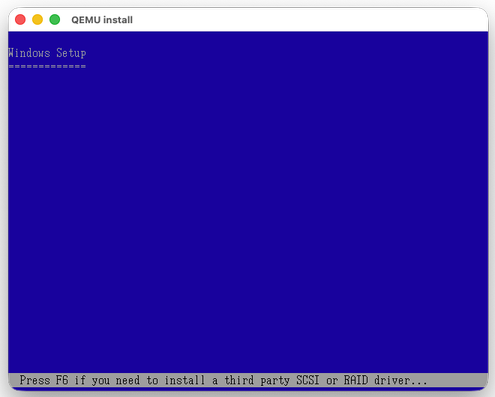
After the installation program started, press F5 when there is a message of “Press F6 …”:
Then a screen like this is shown:
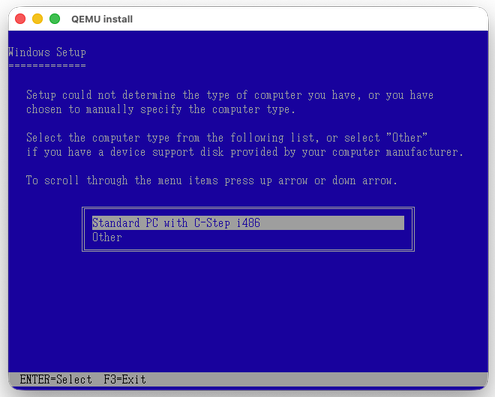
Choose “Standard PC …” to continue.
Currently no working audio is available for Windows XP on macOS Tahoe.